BEHAVE
Behaviour Extraction by Humans and AI from Video

The goal of this guide is to get you to use BEHAVE in under 10 minutes. In order to BEHAVE, you first need two things, an AI model, and a video file.
In order to be able to do inference (use AI to detect objects in images), you need a model. For this quick start guide, I suggest you use our YOLOv8 nano model that we custom-trained on Little Auks (12MB).
We offer some other models here for download (please note that some are quite large, watch out if you pay for data traffic):
On our Little Auk videos, MegaDetector v5 (and v6) detect as accurately as the custom trained model, however the custom trained model is much faster, therefore that is the suggested model for this quick start guide.
After downloading, unzip the zip file. Later, when the model is needed, select the directory with the model.
If you have your own YOLO model, you can export a model that can be used in BEHAVE using
yolo export model=#path/to/your/model.pt# format=tfjs
At the moment BEHAVE only works with MTS files. We will add support for MP4 files soon. Feel free to email us a sample of your video format and we can see if we can make it work on BEHAVE.
For this quick-start guide we provide some of the Little Auk video's that we made in Svalbard, that were the original inspiration for BEHAVE. You can download a short 10-second (20MB) MTS video here. A full length (30 minutes, 4GB!!) video is available here -- it will take longer to run infer, but it will give a much better idea of real-life use.
BEHAVE makes use of some modern web techniques which unfortunately are not available in all browsers. Right now we can only guarantee that it works in a new version of Google Chrome. We support Chrome 121 and higher, on Windows, Mac and Linux. If you are not sure what browser or which version you have, you can check it here. Alternatively, just open one of the behave tools. If you do not get a warning, your browser version is supported.
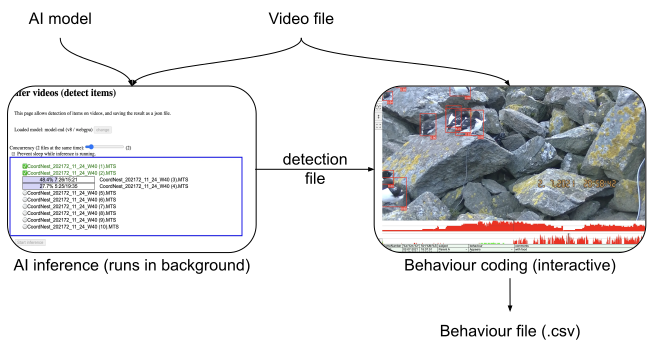
The BEHAVE process takes three steps; the two most important are shown above, not shown there is converting the MTS file to MP4.
During this step, the video is inspected by the AI model frame-by-frame, and a detection file is created, which contains information on where in the video objects were detected.
See the infer help for a step by step guide. Continue to the next step when done.
The browser can only play MP4 files, and we have an MTS file. There are many open source tools to convert MTS to MP4, but we decided to build one into BEHAVE, so that you have the exact right settings. Go to the convert tool, drag in the MTS video file, and it will be converted to an MP4 file.
In the BEHAVE UI you select the behave.det.json file and the behave.mp4 files that you got from the previous two steps.
After the two files are added, you can click "start" and get to the main interface.
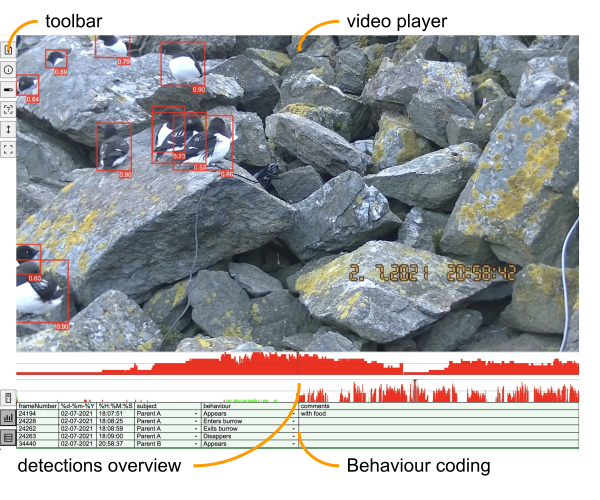
There are many options (a walk-through video-tutorial will be made soon), but let's start simple.
Feel free to click around on the detections-overview bar. You will instantly see the video jump to the right spot.
Now make sure you are on a section without detections, and press the d key a couple of times, and you should see the video move forward by one frame. a makes the video go back one frame. This is very similar to a normal video player.
However now press e, and see the video jump to the next frame with a detection.
Likewise, q jumps to the previous frame with a detection.
s makes the video play, and z and c change the playback speed.
All these keys map to the buttons on the small "remote control" that by default is on the right side (but not visible on the screenshot above). These keys map (on a QWERTY keyboard) exactly to the left 9 keys of the keyboard; but of course you can also click the buttons on the remote.
Feel free to play around a bit with the video.
Now let's code some behaviour.
A behaviour-line contains a subject (who did the action) and an action, so in order to code a behaviour we have to select both.
By default BEHAVE is set up with two subjects (Andrea (shift-A) and Beatrice (shift-B)).
Click shift-A now (or click the "Andrea" button under the remote control).
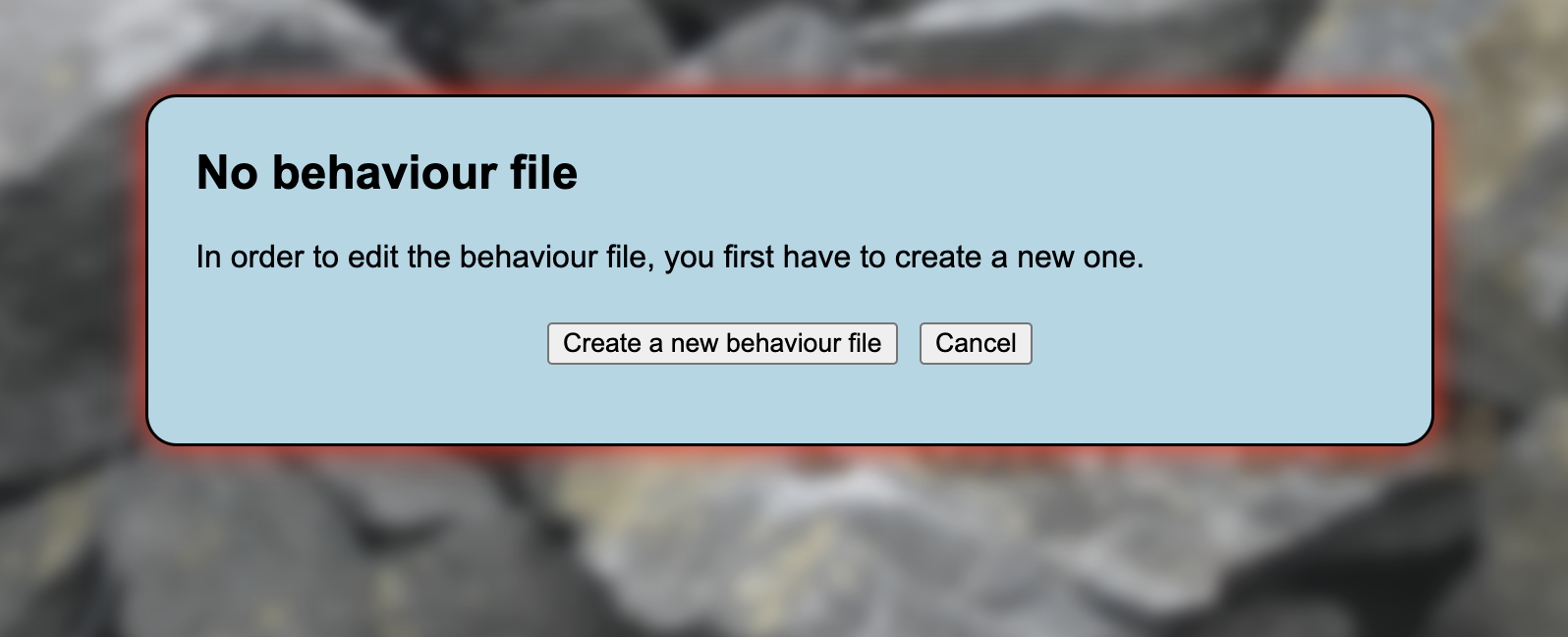
The system tells you that you did not start a behaviour file yet, and invites you to create one.
You have to choose where to save it (you may have to make a new folder for this, or it can be the same folder that has the behave.det.json and behave.mp4 files in it).
You have to now again select the subject (shift-A or the "Andrea" button), and a first line is added to the bottom.
Next you have to choose an action (shift-C for climbing, or shift-D for diving).
Select this, and the behaviour-line is completed.
The correct timestamp is automatically inserted from the video.
You can now navigate to another frame and record a new behaviour.
As soon as a behaviour line is coded, it's written to disk.
At any time you can check the location where you saved the file, and see the csv data.
If somehow behaviour coding got interrupted, you can load the csv file in, and continue where you left off.
Of course the subjects and actions have to be adjusted to the video that one is coding. Changing these, and the connected keys, is easy, but not part of this quick-start page.
This concludes the quick-start; if you have any questions or remarks (positive or negative), don't hesitate to contact us on behave-app@claude.nl.